
Outlook Cleaner
Clean your Outlook inbox without losing what matters.
Mult Cleaner's Outlook Cleaner lets you group emails by sender and category, bulk unsubscribe from newsletters and delete thousands of old emails in minutes, while keeping receipts, banking alerts and important conversations safe.
No scripts, no CSV exports. Just connect Outlook, apply filters and review a preview before you delete anything.
Outlook Cleaner
by Mult Cleaner
Amazon
132 emails · Weekly deals
89 emails · Job alerts & updates
Your Bank
21 emails · Statements & alerts (kept)
Group by
Sender
Filter by
Category
Filter by
Size
Why use an Outlook cleaner instead of doing it manually?
You can clean Outlook using the built-in search. But when your inbox has years of promos, updates and unread newsletters, scrolling and deleting page by page is slow, frustrating and risky. Mult Cleaner automates the boring parts while keeping you in control.
Inbox noise
See what actually matters
When promos and unread newsletters are gone, important emails stand out. No more "999+ unread" anxiety every time you open Outlook.
Storage
Free up Microsoft storage
Large attachments and old threads quietly eat into your Microsoft account storage. Clean them proactively before you hit the "storage almost full" wall.
Focus
Less distraction every day
When your inbox is clean and noisy newsletters are unsubscribed, you spend less time fighting email and more time doing real work.
How to Clean Outlook Fast, Group Emails, Filter by Size & Bulk Delete Safely
The flow is simple: connect Outlook, group by sender or category, preview what will be removed, then clean up in one click.
-
1
Connect your Outlook account
Use the official Microsoft OAuth flow to connect your Outlook. We never see your password, and you can revoke access anytime from your Microsoft account settings.
-
2
Group & filter your inbox
Group emails by sender, category or folder. Filter by size, date range and subject keywords to target only what you don't need without touching important conversations.
-
3
Unsubscribe & delete in bulk
Preview affected senders and email counts, unsubscribe from noisy lists where possible, and delete the rest in one action. Important senders and folders stay untouched.
Outlook Cleaner features to clean your inbox fast
Mult Cleaner's Outlook Cleaner gives you everything you need to clean Outlook safely. group senders, filter by size and category, bulk delete promo emails and unsubscribe from newsletters without touching important conversations.
Group Outlook inbox by sender
Instead of scrolling page by page, see your Outlook inbox grouped by sender. Quickly spot spammy brands, forgotten newsletters and bulk promos that are safe to delete.
- • Identify top senders cluttering your Outlook inbox in seconds.
- • Select or deselect entire senders with a single click.
- • Automatically keep banks, utilities and critical service emails.
Filter Outlook by category & size
Combine Outlook categories with Mult Cleaner's filters to remove exactly what you don't need, from heavy threads with attachments to years of old promotions.
- • Target specific Outlook folders and categories.
- • Filter by email size to find large, storage-hungry conversations.
- • Use date ranges to keep recent activity and only clean older emails.
Smart bulk unsubscribe from newsletters
Mult Cleaner highlights senders that look like Outlook newsletters and marketing lists so you can unsubscribe while you clean, reducing future inbox noise automatically.
- • Unsubscribe from multiple newsletter senders in one pass.
- • Cut down new promo emails instead of just deleting old ones.
- • Keep only the newsletters you actually open and read.
Preview before bulk deleting Outlook emails
Before anything is removed, Mult Cleaner shows a clear summary of the Outlook cleanup, so you can double-check senders, categories and storage impact before confirming.
- • See email counts per sender, category and filter combination.
- • View total storage space you're about to free up in Outlook.
- • Access logs after deletion for transparency and peace of mind.
Outlook Cleaner use cases
From chaotic inboxes to "storage almost full" warnings, Outlook Cleaner helps you reset, declutter and stay on top of email without starting from zero.
Reset a chaotic Outlook inbox
Use Outlook Cleaner to clear years of promos, unread newsletters and low-value updates in one go. Keep important threads, but finally get rid of the "999+ unread" stress.
Free up Outlook & OneDrive space
Filter by size to find huge attachments, old reports and auto-generated emails that eat storage. Free up space in Outlook so you can delay upgrading your Microsoft 365 plan.
Prepare Outlook for a new job or client
Clean outdated subscriptions, personal clutter and noisy lists before a new role or big client. Make sure important work emails never get buried under old messages again.
Manual Outlook cleanup vs Outlook Cleaner
A quick look at what changes when you stop doing everything manually inside Outlook.
| Task | Manual in Outlook | With Outlook Cleaner |
|---|---|---|
| Remove 5 years of promo emails | Multiple searches, manual selection per page, repeat for each brand. | Group by sender & category, select bulk senders, delete in one run. |
| Find heavy attachments | Use size filters & scroll, manually choose threads across folders. | Filter by size & date, preview and bulk remove heavy emails safely. |
| Unsubscribe from unused newsletters | Open each email, scroll, hunt for small unsubscribe links. | See newsletter-heavy senders together and unsubscribe from many at once. |
| Run regular cleanups | Repeat searches and deletions every few months from scratch. | Saved presets like "Old promos" or "Large attachments" and re-run quickly. |
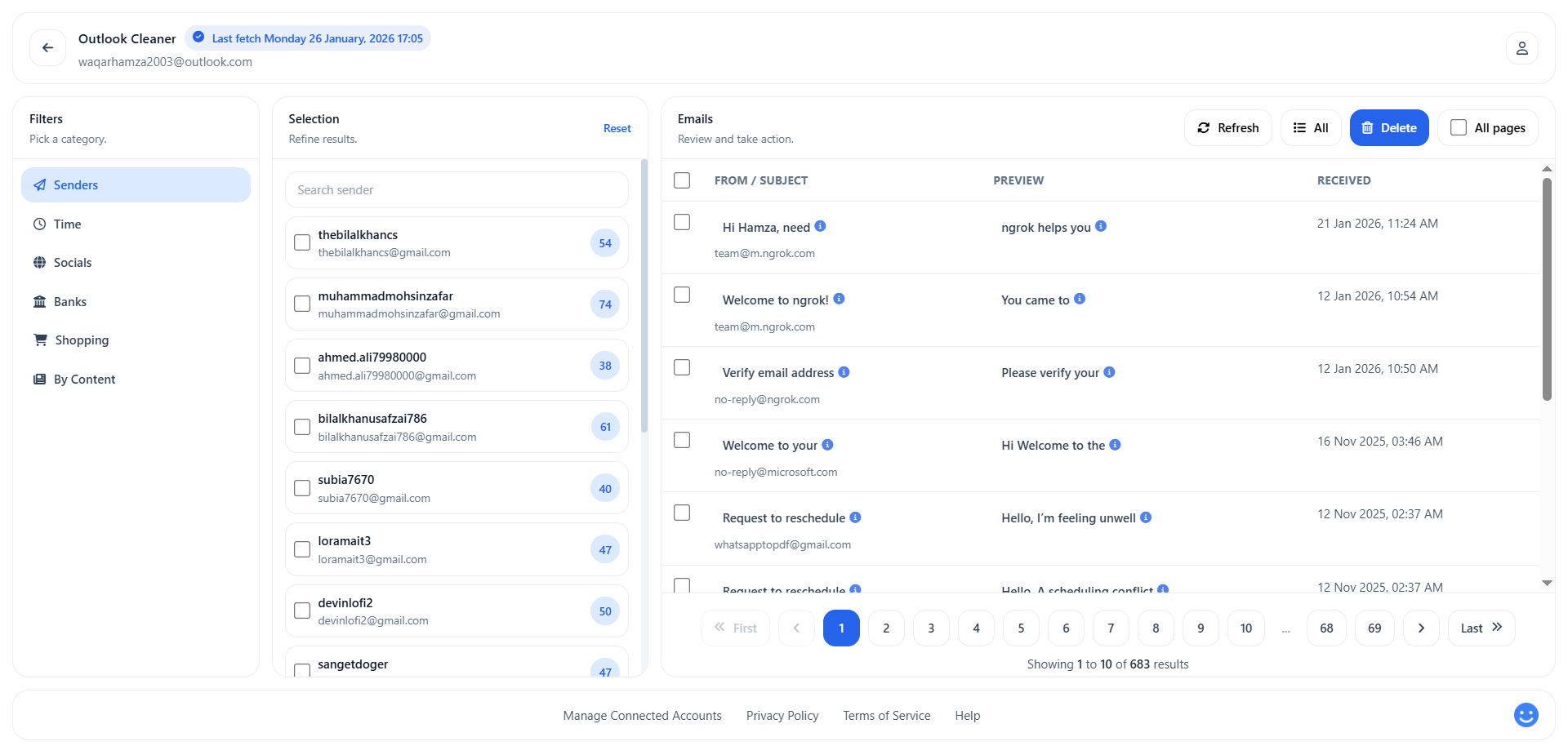
See Outlook Cleaner in action
Get a clear overview of who fills your inbox, which categories cause most of the noise, and how much storage you can free before you delete a single email.
- • Group your Outlook by sender, category and folder in a single dashboard.
- • Apply filters for date, size, category and text without complex search syntax.
- • See live counts of emails and estimated storage you're about to free.
- • Unsubscribe and bulk delete promotional senders in one focused pass.
Outlook Cleaner FAQ
Common questions about using Mult Cleaner as your Outlook cleaning tool.
Is it safe to connect my Outlook to Mult Cleaner? +
Yes. We use Microsoft's official OAuth flow and only request the permissions needed to list and delete emails you select. You can revoke access anytime from your Microsoft account permissions.
Can Outlook Cleaner accidentally delete important emails? +
We strongly prioritize safety. You always see a clear preview grouped by sender and category, and you can deselect anything before confirming. We also recommend keeping senders like banks, utilities and work domains unchecked by default.
Do I need to keep Outlook open while cleaning? +
No. Once you start a cleanup from Mult Cleaner, it runs through the API in the background. You can continue working or close the app; progress will still complete.
How many Outlook accounts can I clean? +
It depends on your plan. The Free plan works with a single Outlook account and limited deletions. Paid plans support multiple Outlook accounts with unlimited cleanups. See our pricing page for details.
Ready to clean up your Outlook inbox?
Connect Outlook to Mult Cleaner, group emails by sender and category, preview what's about to be removed and clean thousands of emails in a few clicks.